It’s a lot easier than you may think
Recently I had a client ask me both my recommendations on when they should patch the firmware (IMPI, RAID controller, BIOS, and hard disk drive firmware) as well as how to go about doing it. This post will answer both of these questions.
Why would you want to update?
- Because it provides new functionality that may have been introduced.
- Because it will help you maintain uptime of your environment and avoid outages due to bugs in the code.
- Because security is paramount. Having run a data center during the times of Spectre/Meltdown I am well aware of the possibilities of security vulnerabilities being discovered and exploited.
When should you update?
There are no hard and fast rules when it comes to firmware updates. However in IBM Cloud there are two times when we will ask to update your firmware:
- When a vulnerability has been discovered and the vendor has released a new version of their firmware to remediate the vulnerability.
- When updating the firmware will resolve a known bug / issue with the device.
Other than those two times you will not directly be prompted by IBM Cloud to update your firmware. However, the device detail page of the host will show that a firmware update is recommended for the host.
The host below, for example, has one firmware update available:

And if you hover your mouse over the underlined Firmware you can see that this is a recommended (as opposed to required) update:

Update Procedure
Updating the firmware of your ESXi host(s) can be accomplished by doing the following:
- In vCenter, place the host in maintenance mode.
- While still in vCenter, power off the host.
- Log into the IBM Cloud portal (https://cloud.ibm.com).
- Using either the search bar at the top of the portal or the device list in the left hand navigation pane locate the host you have powered off and open the device details for the host.
- Ensure that the host is powered off. You can verify that the host is powered off by the indicator lights on the device details page. The host should show power as powered off and disconnected.

6. From the action menu in the upper right select Actions —> Update firmware. Note that if this selection is greyed out then the server is not powered off.
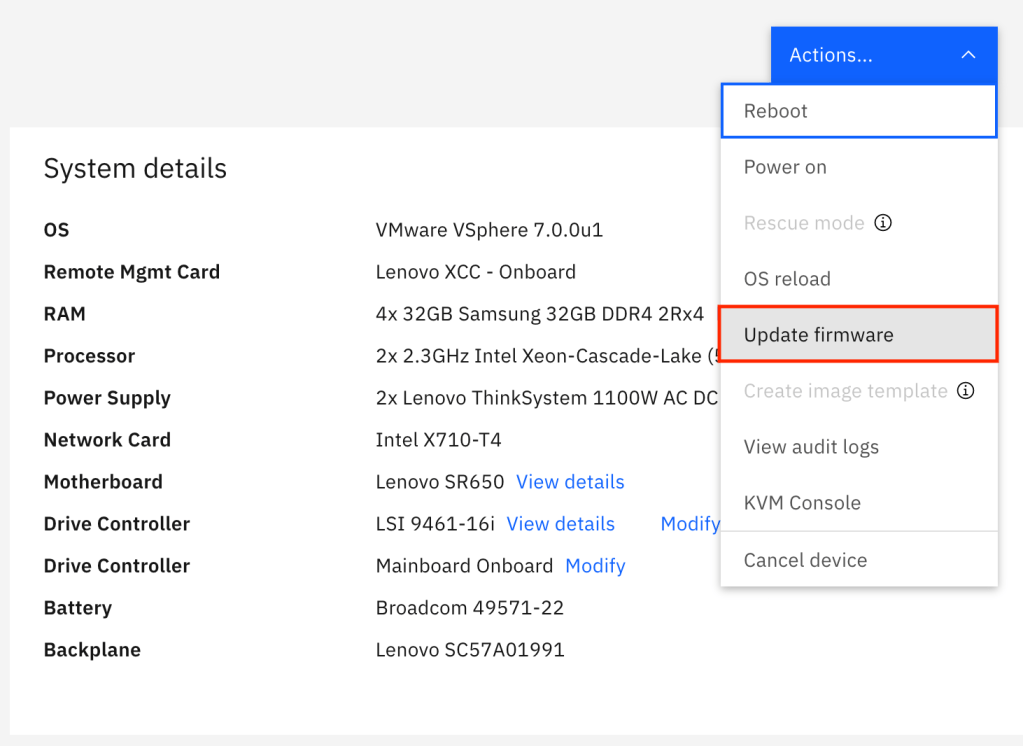
7. A new window will open asking you to select the components you wish to update.
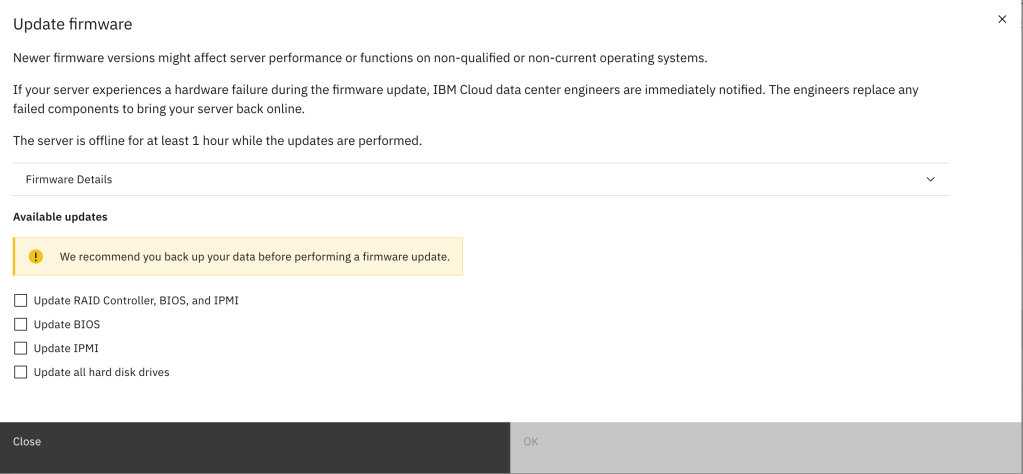
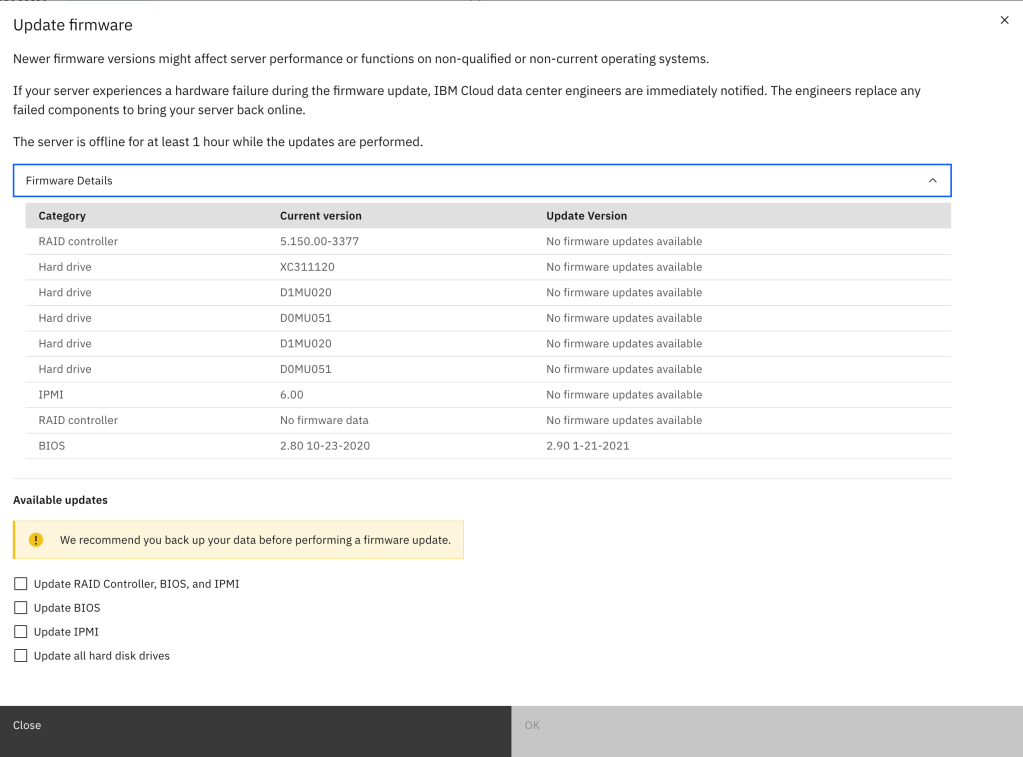
You may wish to click on Firmware Details and see which specific components have updates available. In the example below you can see that the BIOS has an update available.
8. Select the desired components and click OK. Here you can see I have chosen to update the BIOS.
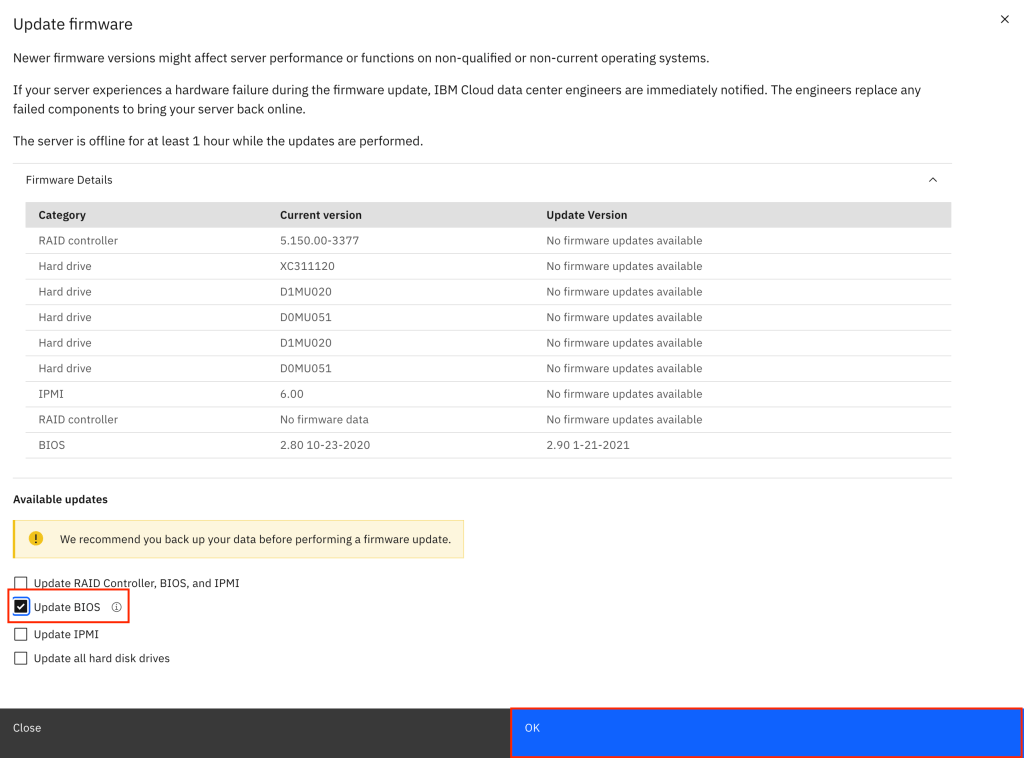
9. Upon clicking OK the window will closed. A prompt in the upper right corner will show that the request was successful and the firmware update will begin processing.
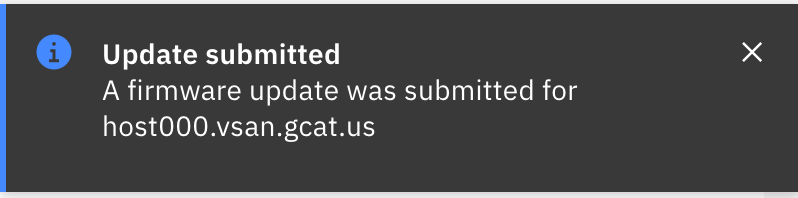
Refreshing the device details page will now show that a pending transaction is in process.

And expanding that twisty will show the details of the transaction.
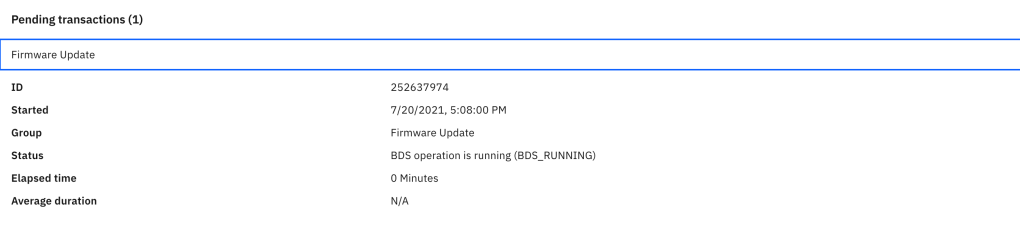
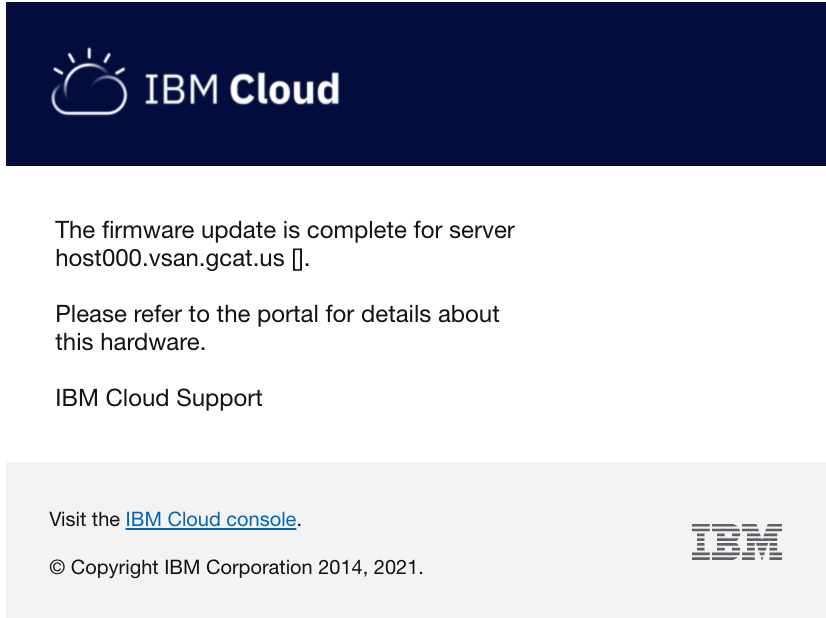
10. Once complete you will be sent an email notifying you that the transaction is complete. You may also monitor (refresh) the device page to see the status of your update.
Below shows an example of the email.
11. Log back into vCenter and remove the host from maintenance mode.
Like all computers – bare metal servers in IBM Cloud require care and maintenance in order for them to run at their optimal performance. By periodically performing firmware updates you can ensure your systems are running at their best.


 Virtual Musings
Leave a comment