So I recently had a random problem. I was working with a client on deploying a virtual firewall device inside of IBM Clouds’ VMware Cloud Foundation as a Service (VCFaaS). And the first thing that the device asked for was a license file. Well – there’s no interfaces yet setup on the virtual machine so I couldn’t SSH / HTTPS or anything else to the device, so how to get the file up there to finish configuration?
Since I did have access to the virtual hardware of the VM, I figured I could take the file and get it into an .iso file, then mount that in the virtual CD/DVD drive of the VM and use that to copy the license file over.
But it’s been a long time since I’ve even thought about DVD’s or CD’s – so how in 2024 do you create an .iso file in MacOS? It’s surprisingly easy.
It’s a two step procedure, first you use Disk Utility to create a CDR image, then you convert that image to an ISO.
Launch Disk Utility from Launchpad. Go to –> File –> Image from Folder.

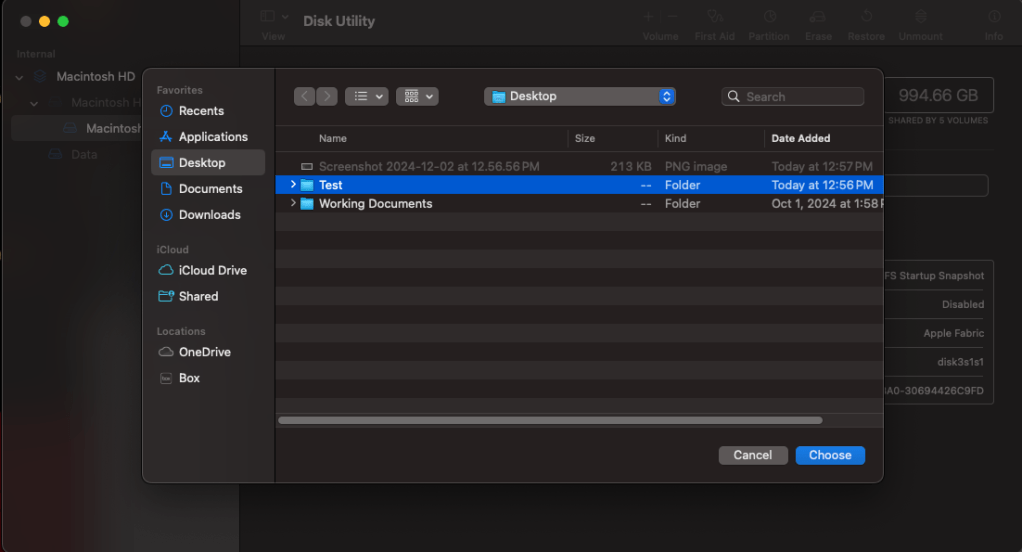
Browse to and select the folder containing your file(s). In my example the folder is on my desktop for ease of use. Click Choose to continue.
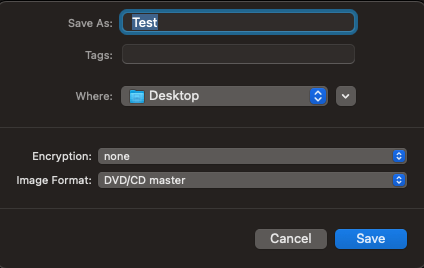
Set the ‘Image Format’ to DVD/CD master and click Save to save you new shiny .iso image.
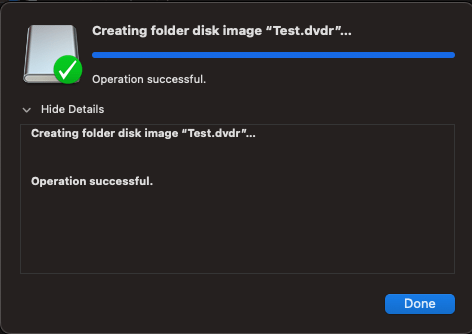
This will create a CDR disk image, to convert it to an ISO image we need to open a terminal window and convert it to .iso by running the following commands.
cd ~/Desktop
hdiutil makehybrid -iso -joliet -o Test.iso Test.dvdr.cdr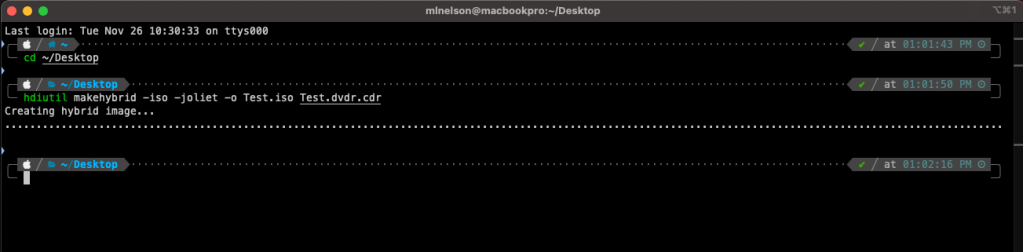
Boom! Nice little .iso file that can then be used with a virtual machine to copy files to.



 Virtual Musings
Leave a comment