IBM Cloud VMware Cloud Foundation as a Service (VCFaaS) comes fully integrated with VMware Cloud Director Availability, or VCDA. This services allows you to replicate virtual machines from on-premises to IBM Cloud, or between two sites or regions in IBM Cloud.
The service itself comes preconfigured with the most common cloud-to-cloud replication scenarios, typically based upon geography. So sites in us-south are preconfigured with site pairings already setup between itself (us-south) and us-east as that is one of the most common scenarios.
But what if you want to create a site pairing that is not already preconfigured? The instructions below show you how to go about this process.
To begin, create your first virtual data center on a site. In my example that follows my first site is London 04. .
Next, create your second VDC on a site in a different region – in my example it’s Frankfort 02.
Once the two VDC’s are created you will also need to get the site names. To get the site name:
- Click on the site you created your VDC in
- Navigate to Add On Services
- Click on the VCF as a Service pairings tab.
In the list you will find the site name. While both public and private connections are available, ideally you will want to select the one that has a private connection for your zone. Below is an example of the private site name for London 04.
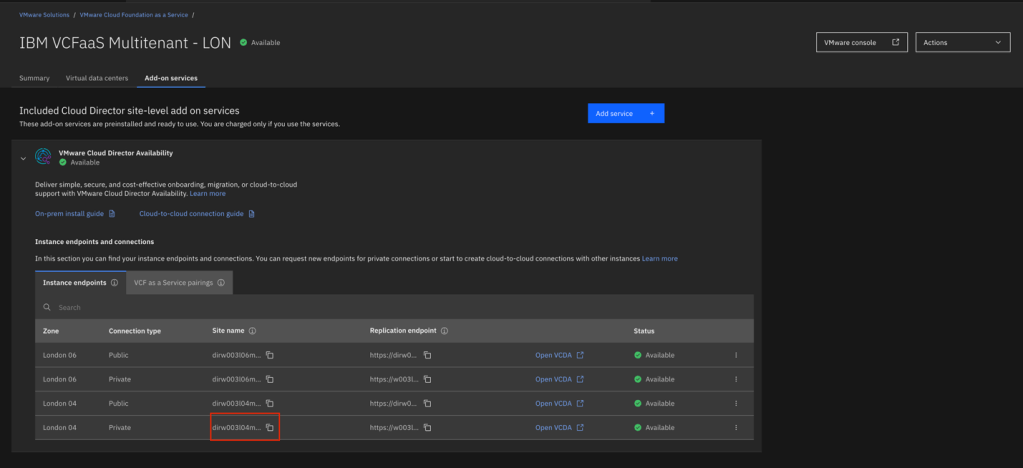
Get the site names for both sites.
To create a site pairing you will need to create the peering from both sites. To do so:
- Navigate to one of the sites (not the VDC)
- Go to Add On Services.
- Expand VMware Cloud Director Availability
- Click on the VCF as a Service pairings tab
- Click on Create pairing.
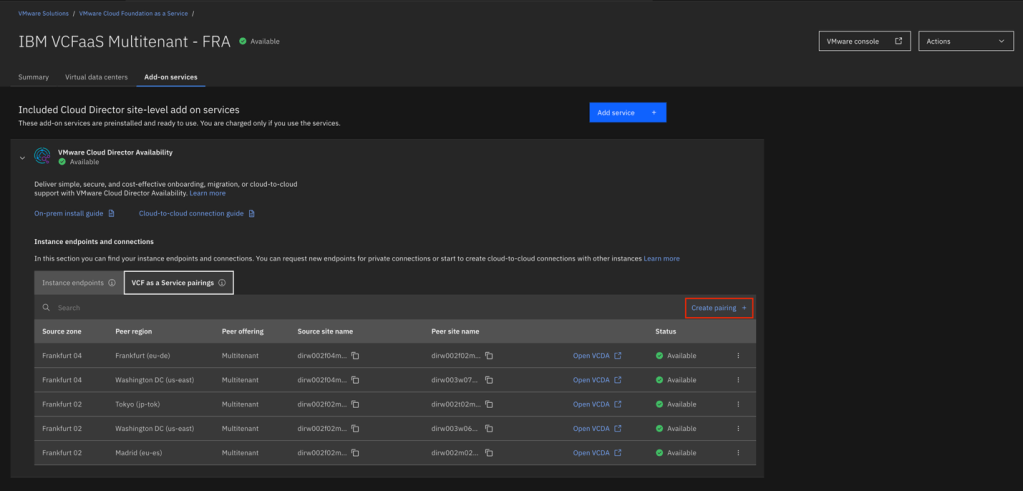
A fly in window will appear. Fill out this form as follows:
- For zone to connect from – select the zone you are coming from. In my example that is Frankfort 02.
- Select the peer geography and region. In the example Europe is the geography and London (eu-gb) is the region.
- Type in the name of the site you are peering too. This is the site name you captured earlier for the site you are pairing to (not the site you are currently on).
- Once complete click on create pairing.
Here is an example peering Frankfort 02 to London 04.

In a few minutes you will see the new peering created, but in a waiting for pairing status.
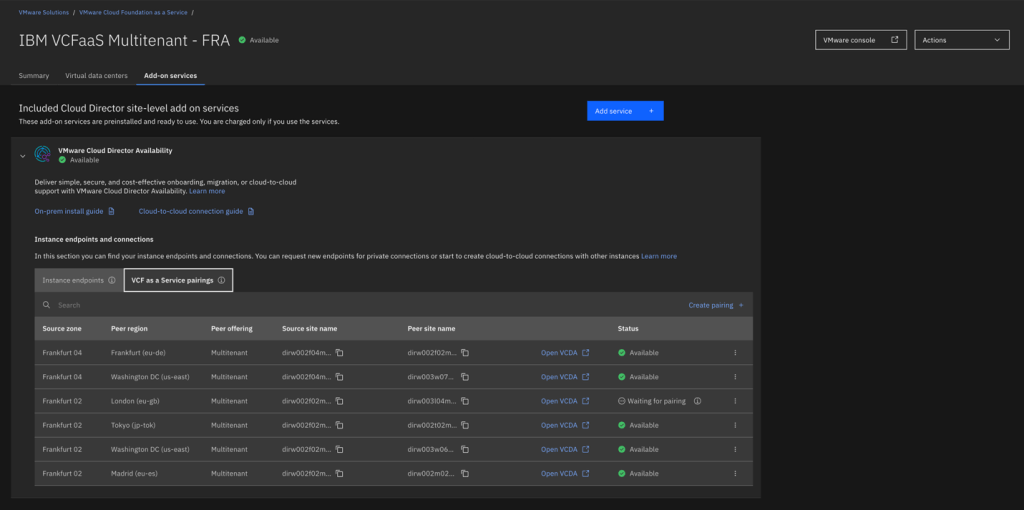
Once this status is achieved you need to repeat the same procedure, but this time with the source being the destination and vice versa.
Once both directions have been created after a few minutes the pairing will show up on both sites with a status of available.
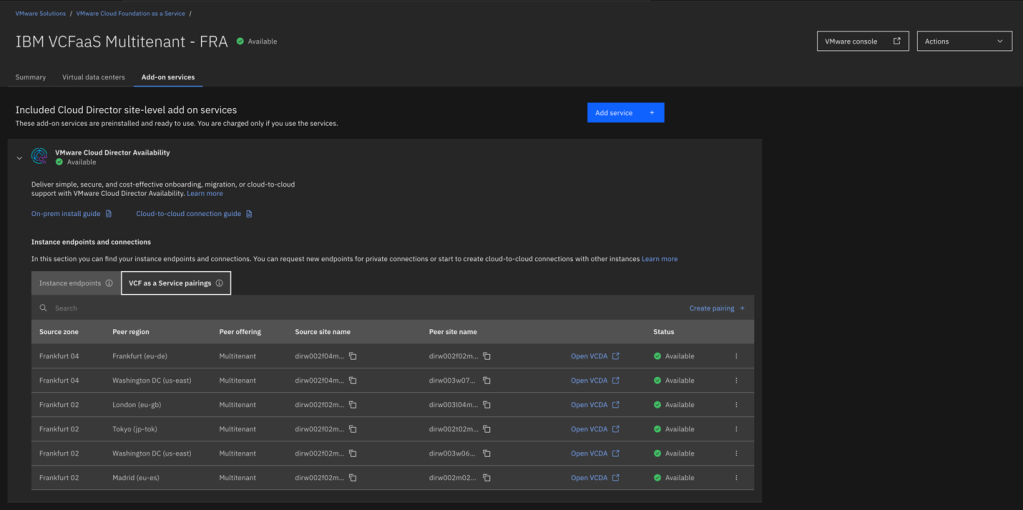
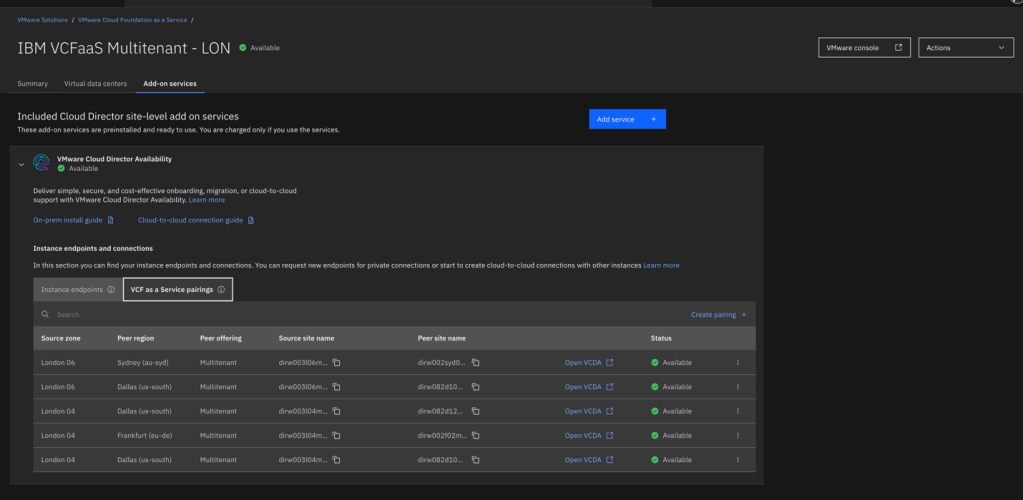
Once this is complete you can move onto configuring VCDA between the two sites.



 Virtual Musings
Leave a comment